

How To Create Tabs In Android
In this tutorial, I'm going to show you how to implement Tabs in your Android app using Kotlin
We're going to use the new ViewPager, ViewPager2.
This version of ViewPager has some new features, and the way to use it with Tabs is a little bit different.
Adding Dependencies
Go to your app-level build.gradle, and add the following dependencies:
Code language: Kotlin ( kotlin )
dependencies { // ... implementation 'com.google.android.material:material:1.1.0' implementation 'androidx.viewpager2:viewpager2:1.0.0' // ... }
Creating the Tabs Layout
In your Activity's layout file, add a TabLayout, for the tabs, and a ViewPager2
Code language: HTML, XML ( xml )
<?xml version="1.0" encoding="utf-8"?> <LinearLayout xmlns:android="http://schemas.android.com/apk/res/android" xmlns:app="http://schemas.android.com/apk/res-auto" android:layout_width="match_parent" android:layout_height="match_parent" android:orientation="vertical"> <com.google.android.material.tabs.TabLayout android:id="@+id/tab_layout" android:layout_width="match_parent" android:layout_height="wrap_content" android:background="@color/colorPrimaryDark" app:tabMaxWidth="0dp" app:tabTextAppearance="?android:attr/textAppearanceMedium" app:textAllCaps="false" /> <androidx.viewpager2.widget.ViewPager2 android:id="@+id/tabs_viewpager" android:layout_width="match_parent" android:layout_height="0dp" android:layout_weight="1"/> </LinearLayout>

Creating Tabs ViewPager Adapter
Create a new Kotlin class and name it TabsPagerAdapter
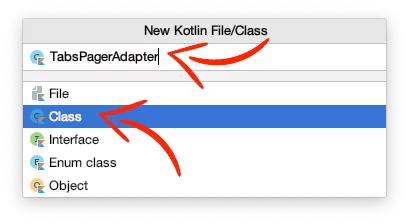
Next, paste the following code inside:
Code language: Kotlin ( kotlin )
class TabsPagerAdapter (fm: FragmentManager, lifecycle: Lifecycle, private var numberOfTabs: Int) : FragmentStateAdapter(fm, lifecycle) { override fun createFragment (position: Int) : Fragment { when (position) { 0 -> { // # Music Fragment val bundle = Bundle() bundle.putString("fragmentName", "Music Fragment") val musicFragment = DemoFragment() musicFragment.arguments = bundle return musicFragment } 1 -> { // # Movies Fragment val bundle = Bundle() bundle.putString("fragmentName", "Movies Fragment") val moviesFragment = DemoFragment() moviesFragment.arguments = bundle return moviesFragment } 2 -> { // # Books Fragment val bundle = Bundle() bundle.putString("fragmentName", "Books Fragment") val booksFragment = DemoFragment() booksFragment.arguments = bundle return booksFragment } else -> return DemoFragment() } } override fun getItemCount () : Int { return numberOfTabs } }
In the createFragment method, we return a fragment for each position.
In the getItemCount method, we use the same number of fragments with the tabs.
Adding Tabs in Activity
In the Activity's Kotlin file, customize and set the number of tabs.
Code language: Kotlin ( kotlin )
class MainActivity : AppCompatActivity () { override fun onCreate (savedInstanceState: Bundle?) { super.onCreate(savedInstanceState) setContentView(R.layout.activity_main) // Tabs Customization tab_layout.setSelectedTabIndicatorColor(Color.WHITE) tab_layout.setBackgroundColor(ContextCompat.getColor(this, R.color.colorPrimaryDark)) tab_layout.tabTextColors = ContextCompat.getColorStateList(this, android.R.color.white) // Set different Text Color for Tabs for when are selected or not //tab_layout.setTabTextColors(R.color.normalTabTextColor, R.color.selectedTabTextColor) // Number Of Tabs val numberOfTabs = 3 // Set Tabs in the center //tab_layout.tabGravity = TabLayout.GRAVITY_CENTER // Show all Tabs in screen tab_layout.tabMode = TabLayout.MODE_FIXED // Scroll to see all Tabs //tab_layout.tabMode = TabLayout.MODE_SCROLLABLE // Set Tab icons next to the text, instead above the text tab_layout.isInlineLabel = true // ... } }
Then, create the adapter for the ViewPager2 and enable the left-n-right swipe.
Code language: Kotlin ( kotlin )
class MainActivity : AppCompatActivity () { override fun onCreate (savedInstanceState: Bundle?) { super.onCreate(savedInstanceState) setContentView(R.layout.activity_main) // ... // Set the ViewPager Adapter val adapter = TabsPagerAdapter(supportFragmentManager, lifecycle, numberOfTabs) tabs_viewpager.adapter = adapter // Enable Swipe tabs_viewpager.isUserInputEnabled = true // ... } }
Last, link the TabLayout and the ViewPager2 together, and set the tab titles and icons for each fragment.
Code language: Kotlin ( kotlin )
class MainActivity : AppCompatActivity () { override fun onCreate (savedInstanceState: Bundle?) { super.onCreate(savedInstanceState) setContentView(R.layout.activity_main) // ... // Link the TabLayout and the ViewPager2 together and Set Text & Icons TabLayoutMediator(tab_layout, tabs_viewpager) { tab, position -> when (position) { 0 -> { tab.text = "Music" tab.setIcon(R.drawable.ic_music) } 1 -> { tab.text = "Movies" tab.setIcon(R.drawable.ic_movie) } 2 -> { tab.text = "Books" tab.setIcon(R.drawable.ic_book) } } // Change color of the icons tab.icon?.colorFilter = BlendModeColorFilterCompat.createBlendModeColorFilterCompat( Color.WHITE, BlendModeCompat.SRC_ATOP ) }.attach() // ... } }
Extra: Customizing Tab's TextView
You can change Tab's TextView size and font by getting every child view of the TabLayout and editing the TextViews the way you want
Code language: Kotlin ( kotlin )
private fun setCustomTabTitles () { val vg = tab_layout.getChildAt(0) as ViewGroup val tabsCount = vg.childCount for (j in 0 until tabsCount) { val vgTab = vg.getChildAt(j) as ViewGroup val tabChildCount = vgTab.childCount for (i in 0 until tabChildCount) { val tabViewChild = vgTab.getChildAt(i) if (tabViewChild is TextView) { // Change Font and Size tabViewChild.typeface = Typeface.DEFAULT_BOLD // val font = ResourcesCompat.getFont(this, R.font.myFont) // tabViewChild.typeface = font // tabViewChild.setTextSize(TypedValue.COMPLEX_UNIT_SP, 25f) } } } }
You can find the final project here
If you have any questions,please feel free to leave a commentbelow
How To Create Tabs In Android
Source: https://johncodeos.com/how-to-create-tabs-in-android-using-kotlin/
Posted by: gridercovest.blogspot.com
0 Response to "How To Create Tabs In Android"
Post a Comment